Welcome to the iNaturalist App Tutorial for the Minnesota Mycological Society!
The iNaturalist app is a powerful tool for documenting and contributing to the understanding of fungal diversity. By recording the mushrooms you find during your forays, you can help the Minnesota Mycological Society gauge fungal diversity in the areas where you hunt for mushrooms. This tutorial will guide you through the process of using the iNaturalist app to record and share your mushroom observations efficiently.
Getting Started with iNaturalist
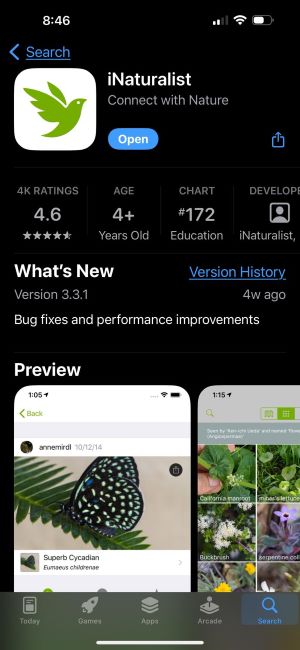
Download and Install the App
- Visit your device’s app store (App Store for iOS or Google Play Store for Android).
- Search for “iNaturalist” and download the app.
- Once downloaded, install the app on your device.
Create an Account
- Launch the iNaturalist app.
- Sign up for a new account, or log in if you already have one.
- Provide the required information to create your account.
Explore iNaturalist’s Features
Home Screen
The app’s home screen displays recent observations, featured projects, and other relevant information.
Navigation
Several navigation options are available to you, such as Explore, Observations, Projects, and More.
Settings
To modify your iNaturalist settings, you will tap on your profile icon. It is in the bottom navigation panel and is labeled “Me.” On this page of the app, you can see all of your observations. In the upper right corner, you will see a gear icon. Tap this to navigate to your settings.
On the settings page, you can change the username and email that are associated with your iNaturalist account. There are also settings that you can toggle on and off. Here are some recommended settings:
- Autocomplete names–ON
- Automatic upload–OFF
- Suggest species–ON
- Show common names–ON
- Show scientific names first–ON
It is important to disable automatic upload. Otherwise, when you are in the field, it will eat up your battery trying to find wifi service.
Recording Mushroom Observations on iNaturalist
Start a New Observation
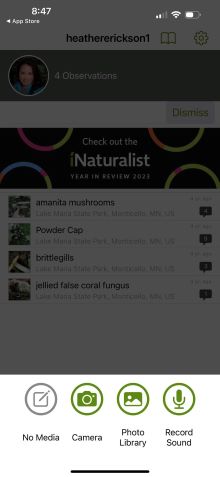
- Tap the “+” button at the bottom center of the screen.
- Choose “Take Photo” or “Choose from Gallery” to add a photo of the mushroom.
Add Observation Details
- Identify the mushroom to the best of your ability. If you are unsure of what kind it is, you can leave the identification field blank. This is where having species suggestions turned on can be very helpful.
- Add any relevant notes, such as location, habitat, and any distinguishing features you observed.
- Specify the date and time of observation.
Location
- Enable location services on your device to automatically capture the location of your observation. Alternatively, you can manually enter location details. You can also obscure location details if you are in a sensitive area that the owner doesn’t want geolocated.
Submit the Observation
- Review the details you’ve entered for accuracy.
- Tap “Save” or “Submit” to upload your observations to the iNaturalist database.
Minnesota Mycological Society Projects on iNaturalist
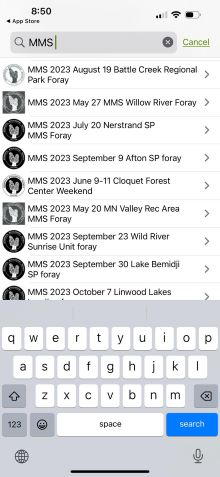
Joining projects is essential to our ability to capture your observations and use the data. To find MMS projects, tap on the “Projects” tab in the app’s navigation menu. Next, search for “MMS” then a space, and the current year. For example, “MMS 2023.” This will pull up our available projects for the year. You can also browse past projects in this way.
Joining a Project
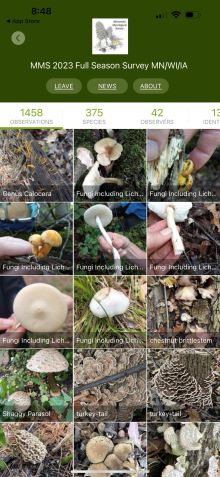
You can join multiple projects without slowing down data capture. The MMS has two blanket projects each year. In 2023, those two projects are:
- MMS 2023 Full Season Survey MN/WI–The MMS Full Season Survey MN/WI covers every observation our members make in MN or WI during the May – October mushrooming season, including those observations made outside of MMS forays
- MMS 2023 All Foray Survey–The MMS 2023 All Foray Survey is a collection of all observations made during our organized forays.
There are also individual projects for each foray we hold during the season. You don’t need to join a project to look at it, but you will need to join if you wish to upload your own observations. We encourage you to do this. To join a project, all you need to do is select the desired project and tap “Join.”
Maximize Your Contribution with Accuracy and Detail
- Take clear photos that capture the key features of the mushrooms.
- Provide accurate information about the location, date, and time of the observation.
- Include relevant notes to help others understand the context of your findings.
Learn with iNaturalist: Explore Observations
- Utilize the “Explore” tab to view recent observations made by others in your area or of specific species.
- Learn from the expertise of the iNaturalist community by browsing through comments and identifications on different observations.
Discover Insights
Analyze trends and patterns in fungal diversity using iNaturalist’s data visualization tools to gain a deeper understanding of the local mushroom ecosystem and contribute to scientific research.
Collaborate with Fellow Members
By using the iNaturalist app and participating in Minnesota Mycological Society projects, you can actively contribute to the understanding of fungal diversity in the areas where you hunt for mushrooms. Remember to document your observations accurately and share your knowledge with fellow members. Together, we can help build a comprehensive database of mushroom species and promote the conservation and appreciation of Minnesota’s fungal biodiversity. Happy mushroom hunting!
Are You Interested in Minnesota Mushrooms?
Engage with members of the Minnesota Mycological Society within the iNaturalist community. Share knowledge, ask questions, and discuss your observations to enrich your understanding of mushrooms further.